Visual Studio Code Installation
VSCode is fairly straightforward to install, with the exception of the git integration.
- Download and install Visual Studio Code from here.
The installation process is operating-system agnostic, and doesn't require special preparation in most cases.
Ensure you choose the correct operating system.
On Windows, it's recommended to enable all additional options during the "Select Additional Tasks" step.Add to PATH (requires shell restart)is especially important, as it ensures thecodecommand is available in your terminal, which allows you to run VSCode from the command line. Better to have it and not need it than need it and not have it.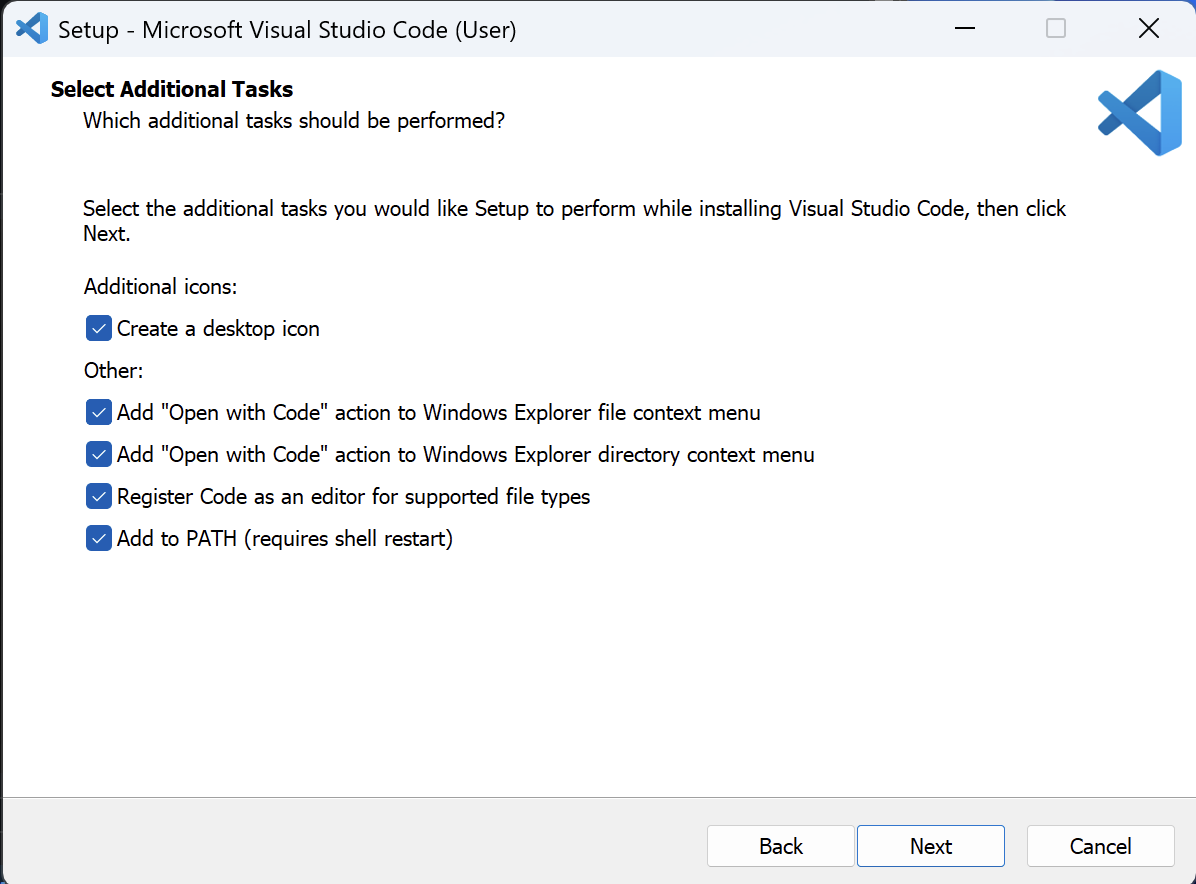
Check all options on this screen if you're unsure. - Press the
Extensionsbutton in the left gutter. VSCode uses extensions to allow users to add functionality to the editor which isn't already baked in. Firstly, to get more accustomed to the editor, you should pick out a theme. To do this, you can type@category:"themes"into the search box, and pick your favorite to install. Catppuccin is always a great pick if you're indecisive. - Follow instructions on the Git Integration page to enable Git support in VSCode.